
Run dotnet in Ubuntu 20.04 LTS and aaPanel
Run Umbraco in Ubuntu
Installing a .NET application on Linux can be beneficial for several reasons:
- Cross-Platform Compatibility: .NET Core, the cross-platform version of .NET, enables applications to run on multiple operating systems, including Linux. This increases the application's reach and usability across different environments.
- Performance and Reliability: Linux is known for its performance and stability. Running a .NET application on Linux can leverage these attributes, potentially leading to better application performance and reliability.
- Open Source and Community Support: Both Linux and .NET Core are open-source, meaning that they benefit from robust community support and continuous improvements. This can lead to better security, more features, and quicker bug fixes.
- Cost-Effectiveness: Linux can be a more cost-effective option for hosting applications, especially for enterprises or developers who are looking to reduce operating costs. Many Linux distributions are available for free, reducing the cost of software licenses.
- Integration with Existing Linux Infrastructure: For organizations already using Linux for their servers or other parts of their IT infrastructure, installing .NET applications on Linux can ensure seamless integration and management within their existing ecosystem.
- Modern Development Practices: .NET Core on Linux supports modern development practices and tools, including containerization with Docker, which is natively supported in Linux. This can facilitate more efficient development, testing, and deployment processes.
- Security: Linux is often praised for its security features. Running .NET applications on Linux can benefit from these security aspects, offering a more secure environment for applications.
In summary, installing a .NET application on Linux can offer advantages in terms of compatibility, performance, cost, integration, modern development practices, and security, making it an attractive option for many developers and organizations.
Follow the steps outlined to achieve this:
Install aaPanel
Optional but useful for maintenance:
The install script will complete within a few minutes and will install the hosting panel giving you valuable tools to maintain your sites.
wget -O install.sh http://www.aapanel.com/script/install-ubuntu_6.0_en.sh && sudo bash install.sh
# Get Ubuntu version
declare repo_version=$(if command -v lsb_release &> /dev/null; then lsb_release -r -s; else grep -oP '(?<=^VERSION_ID=).+' /etc/os-release | tr -d '"'; fi)
# Download Microsoft signing key and repository
wget https://packages.microsoft.com/config/ubuntu/$repo_version/packages-microsoft-prod.deb -O packages-microsoft-prod.deb
# Install Microsoft signing key and repository
sudo dpkg -i packages-microsoft-prod.deb
# Clean up
rm packages-microsoft-prod.deb
# Update packages
sudo apt update
sudo apt-get update && sudo apt-get install -y apt-transport-https aspnetcore-runtime-6.0
sudo apt-get update && sudo apt-get install -y apt-transport-https aspnetcore-runtime-7.0
sudo apt-get update && sudo apt-get install -y apt-transport-https aspnetcore-runtime-8.0
sudo nano /etc/systemd/system/kestrel-helloapp.service
[Unit]
Description=Example .NET Web API App running on Linux
[Service]
WorkingDirectory=/var/www/helloapp
ExecStart=/usr/bin/dotnet /var/www/helloapp/helloapp.dll
Restart=always
# Restart service after 10 seconds if the dotnet service crashes:
RestartSec=10
KillSignal=SIGINT
SyslogIdentifier=dotnet-example
User=www
Environment=ASPNETCORE_ENVIRONMENT=Production
Environment=DOTNET_PRINT_TELEMETRY_MESSAGE=false
[Install]
WantedBy=multi-user.target
sudo systemctl enable kestrel-helloapp.service
sudo systemctl start kestrel-helloapp.service
sudo systemctl status kestrel-helloapp.service
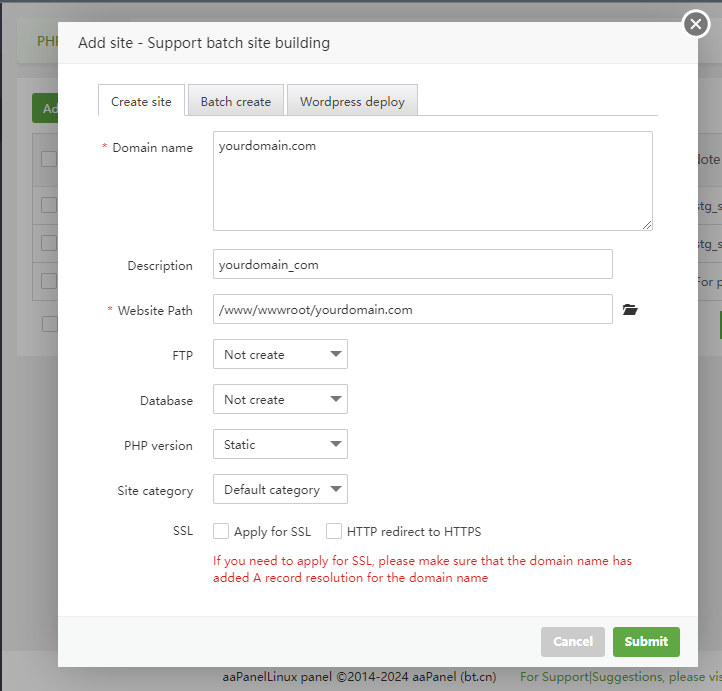
And make sure you set the reverse proxy to the port you configured for the dotnet app (default is 5001)
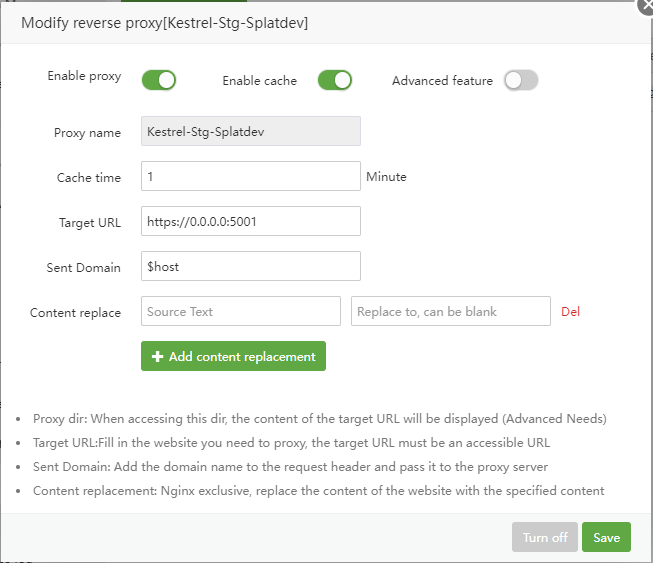
At this point, you can already deploy your website and browse to it.
If you are going to use MSSQL with Ubuntu, make sure to install it following these steps:
wget -qO- https://packages.microsoft.com/keys/microsoft.asc | sudo tee /etc/apt/trusted.gpg.d/microsoft.asc
sudo add-apt-repository "$(wget -qO- https://packages.microsoft.com/config/ubuntu/20.04/mssql-server-2022.list)"
sudo apt-get update
sudo apt-get install -y mssql-server
sudo /opt/mssql/bin/mssql-conf setup
systemctl status mssql-server --no-pager
sudo ufw allow 1433
ufw deny 1433
ufw deny 22
ufw deny 21
ufw deny 20